If you have integrated industrial displays before, you know the drill: a vendor SDK with binary dependencies, a 200-page protocol PDF last updated in 2008, and a sales call with a 'solutions architect' before you can see how anything actually works.
Ampron displays do not work that way. They take HTTP GET requests. That is the whole API.
This guide walks through the four things you need to know to update a real display from your software. By the end you will have driven a display from a single curl command and you'll know enough to wire it into your platform. Reading time: about ten minutes.
What you need
Network access to the display — its IP address and the port specified during commissioning (the curl examples below use 9199 as a sample). A terminal with curl, or just a web browser. That is it. No SDK to install, no API key to request, no certificate to wrangle. The display is a small computer running a content engine. Your platform talks to it the same way a browser talks to a website.
Step 1: Confirm the display is reachable
Hit the /info endpoint:
curl http://192.168.1.50:9199/infoYou will get back the display's status — current layout, brightness, uptime, IP, configured pollers. The response is human-readable HTML by default (also a useful status page if you point a browser at it), with a machine-readable JSON variant available. If you got a response, the display is alive — and you're authenticated by virtue of having network access to it. There is no token to obtain at this stage.
Step 2: Send your first message
The control endpoint follows one pattern:
GET http://DISPLAY_IP:PORT/mlds?id=DISPLAY_ID&layout=LAYOUT_NAME&AREA_KEY=valueThree things you specify. id — which logical display to address (one physical device can host several). layout — which template to render. AREA_KEY=value pairs — what content to put into each named slot in that template.
A real example. Say you have a port-gate display configured with a vehicle layout — a text area for the number plate and an image area for a directional arrow. To show 'ABC-123' with a forward arrow:
curl "http://192.168.1.50:9199/mlds?id=GATE_OUT2&layout=vehicle&numberplate=ABC-123&arrow=S"Press enter. The display updates. That is the entire control loop.
Step 3: Layouts — the templates that define what fits where
A layout is a template stored on the device in config.json. It defines the named areas your URL parameters populate. A simplified version:
{
  "port": "9199",
  "displays": {
    "GATE_OUT2": {
      "displayName": "Main gate out",
      "displayIp": "192.168.100.100",
      "displayPort": "9551",
      "controllerType": "T430",
      "displayWidth": "96",
      "displayHeight": "160",
      "layout": {
        "vehicle": {
          "numberplate": {
            "coordinates": "0 0 95 29",
            "type": "text",
            "fontSize": "24",
            "fontColor": "255 255 255",
            "align": "center"
          },
          "infotext": {
            "coordinates": "0 30 95 69",
            "type": "static",
            "fontSize": "24",
            "params": {
              "21": "Some static text"
            }
          },
          "arrow": {
            "coordinates": "0 70 95 100",
            "type": "image",
            "params": {
              "S": "fwd.png",
              "RE": "left.png"
            }
          }
        }
      }
    }
  }
}
You build the layout once when commissioning the display — defining each area's coordinates (as 'x1 y1 x2 y2' in pixel units), area type (text, static, image, video, date, web, audio), font, color, and behaviour. Once it is in place, you never touch the layout again from your software. Your platform only sends URL parameters that fill the named areas.
Other area types work the same way. A static area shows a fixed value driven by params keys (the snippet above maps key '21' to a fixed string). An image area selects a file from the params map (in the example, 'arrow=S' selects fwd.png). A video area streams from a source URL. A date area renders the current time in the configured format. The request pattern is identical across all of them.
Step 4: Push or pull?
Two integration patterns, depending on where the data lives.
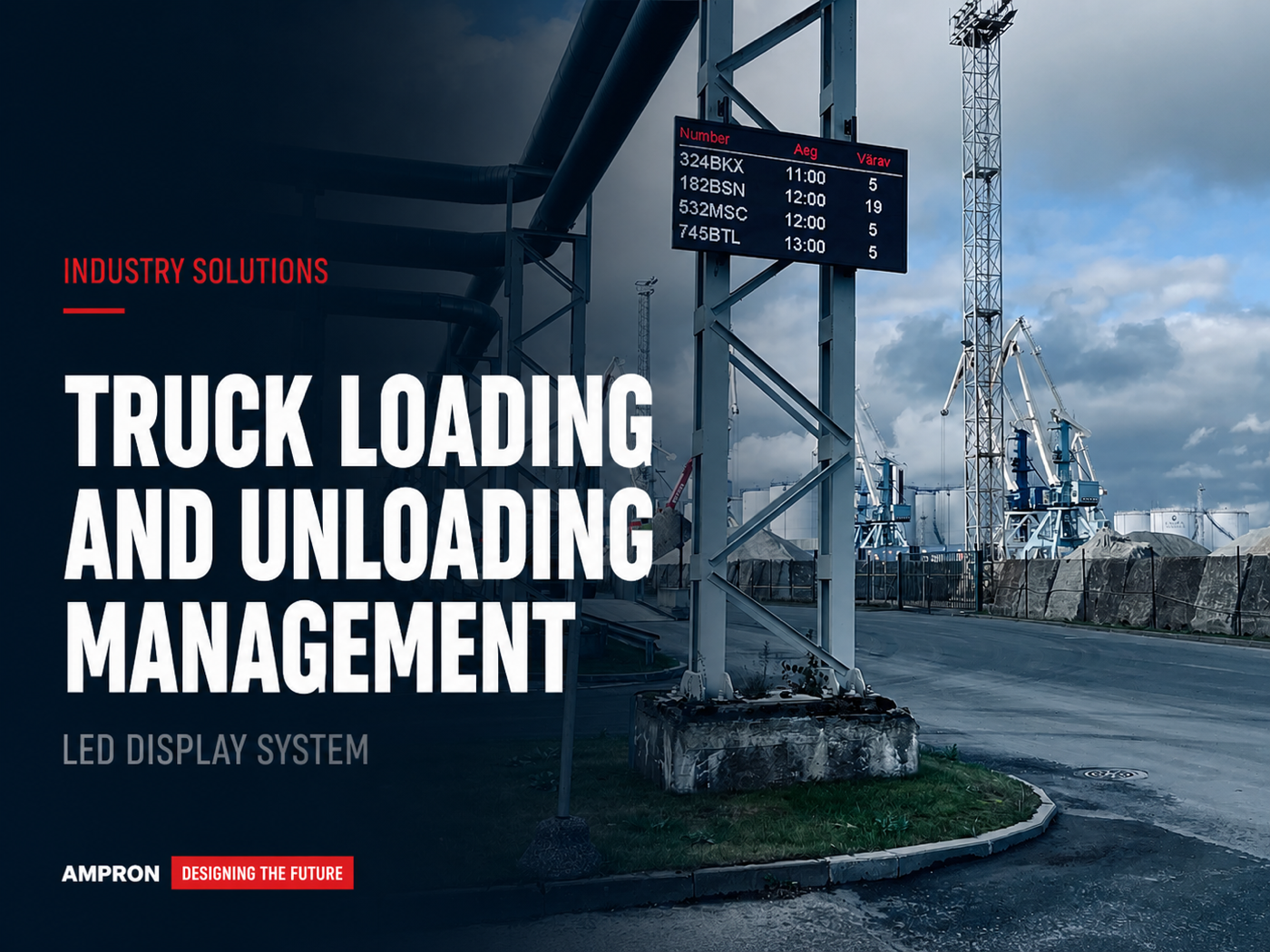
Push — your platform calls the display's URL whenever something changes. Ideal when your system is event-driven and can reach the display's network. Waybiller's logistics platform uses this pattern at the Port of Kunda: every truck weighing event fires one HTTP call to the display, showing the truck's weight result and unloading bay.
Pull — the display polls your platform's endpoint at a configured interval. Useful when the display is in a network segment your platform cannot reach, or when the data source is a third-party URL you cannot modify. Configure pollers in the device's config.json and the display fetches the URL on a schedule, parses the response, and updates itself.
Most installations are push. The display is a destination, not a source.
What you do not have to think about
No middleware. The HTTP request goes directly to the display. No SDK to install — your platform's HTTP client is already enough. No proprietary protocol — the full URL pattern fits on one line. No authentication theatre — network reachability is the auth model, so gate the network and you have gated the display. And the same pattern works across every Ampron product line: outdoor LED (DR Series), compact LED (DS Series), railway-grade LCD (EN 50121). Code written for one display works on all of them.
Where to go from here
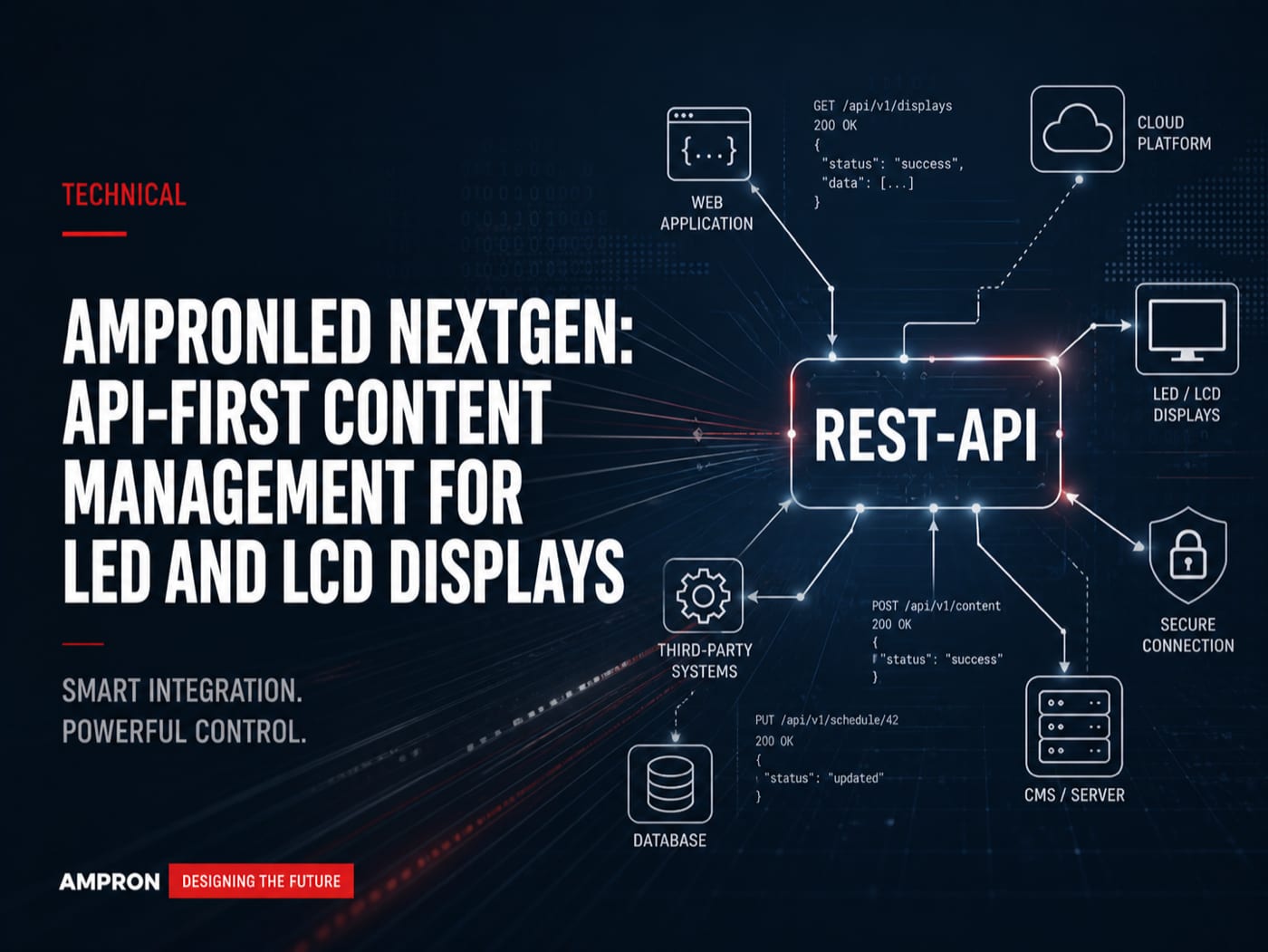
The full reference — every area type, polling configuration, brightness control, monitoring endpoint — lives at ampron.eu/api. Three short examples of real integrations to study: Waybiller at the Port of Kunda, direct NEDAP ANPR camera integration, and the AmpronLED NextGen architecture overview.
Building something? Get in touch. We ship evaluation hardware to qualified integration partners so you can prove the integration before you specify the hardware for a project.